$ scripts --run disapproved-ads-monitor
Disapproved Ads Monitor
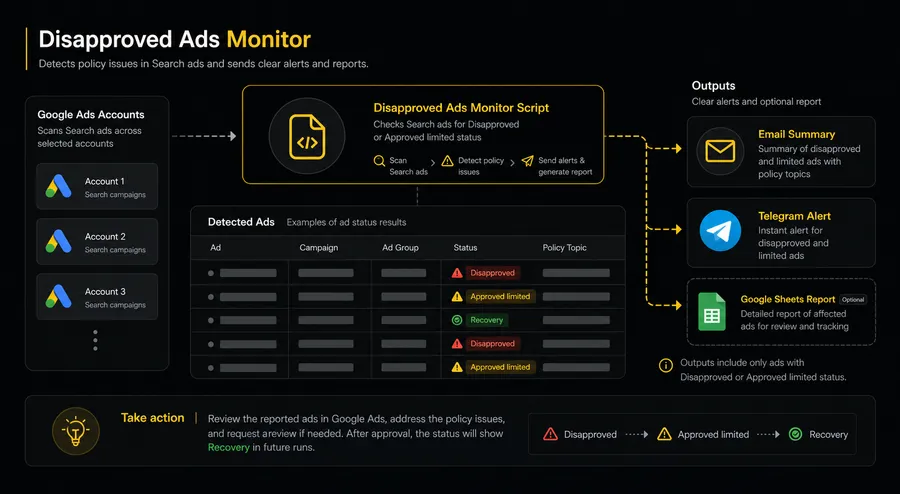
Monitor enabled Search ads for policy issues, receive one concise summary per run, and review the full history in Google Sheets.
The script monitors active ads and sends operational alerts. It does not edit ads, submit appeals, or guarantee uninterrupted detection or delivery.
What this script monitors
- Reads active ads within active ad groups and active campaigns only — paused and removed entities are excluded.
- By default monitors only DISAPPROVED approval status. APPROVED_LIMITED can be added explicitly to MONITORED_APPROVAL_STATUSES.
- Monitors ad_group_ad entries (responsive search ads, expanded text ads, etc.) — not assets or extensions.
- Tracks policy topics reported for each affected ad when available.
- Stores state per account using a composite key (adGroupId:adId) in Script Properties — survives re-runs and quota resets.
- Running the script more than once on the same day does not create duplicate alerts.
- An unchanged issue receives a REMINDER after the configured number of days.
- An ad confirmed as APPROVED after a previously flagged status triggers a RECOVERY event.
Alert events
| Event | Meaning |
|---|---|
| NEW_ISSUE | A monitored policy issue was detected for the first time. |
| STATUS_CHANGED | The ad changed between monitored problem statuses (e.g. DISAPPROVED to APPROVED_LIMITED). |
| REMINDER | The issue remains unchanged and the configured reminder interval has passed. |
| RECOVERY | The previously affected ad is now confirmed as APPROVED. |
| NO_LONGER_MONITORED | The ad is no longer in the active monitored set. This does not confirm approval — it may have been paused or removed. |
Notification examples
Sanitized demo data — no real account credentials or client information.
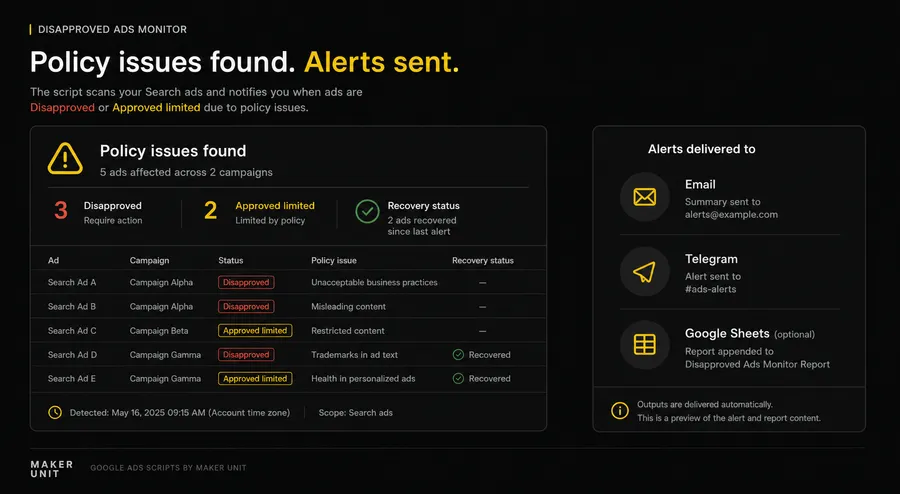
Email — one summary per run
Subject: Google Ads Alert - Disapproved Ads Monitor - Check completed
Environment: STANDALONE
Checked accounts: 1
Events: 2
Errors: 0
Disapproved Ads Monitor
Check completed
Scope: Enabled Search campaigns, ad groups, and ads
Accounts checked: 1
Search campaigns checked: 3
Search ad groups checked: 12
Search ads checked: 48
Disapproved: 2
Approved limited: 0
New issues: 2
Status changed: 0
Reminders: 0
Recovered: 0
No longer monitored: 0
Errors: 0
Policy issues found. See the full report for details.
Full report:
https://docs.google.com/spreadsheets/d/…
Maker Unit: https://maker-unit.com/
One email per run regardless of event count. For per-issue details, open the linked Google Sheets report.
Telegram — one summary per run
⚠️ Disapproved Ads Monitor
Check completed
Scope: Enabled Search campaigns, ad groups, and ads
Accounts checked: 1
Search campaigns checked: 3
Search ad groups checked: 12
Search ads checked: 48
Disapproved: 2
Approved limited: 0
New issues: 2
Status changed: 0
Reminders: 0
Recovered: 0
No longer monitored: 0
Errors: 0
Policy issues found. See the full report for details.
Full report:
https://docs.google.com/spreadsheets/d/…
Telegram is disabled by default. Requires a private bot token and chat ID in your installed copy. Token is redacted in error messages.
Google Sheets — required, 3 sheets
Sheet 1: Current Issues (upserted per ad)
| issue_key | record_status | customer_id | account_name | ad_id | approval_status | policy_topics | first_seen | last_seen | resolved_at |
|---|---|---|---|---|---|---|---|---|---|
| 123456890:111222333:123456789 | ACTIVE | 123-456-7890 | Demo Store | 123456789 | DISAPPROVED | Example Policy | 2026-07-25 | 2026-07-25 |
Sheet 2: Event History (append-only)
| event_timestamp | event_type | customer_id | account_name | ad_id | previous_status | current_status | policy_topics | first_seen | next_reminder |
|---|---|---|---|---|---|---|---|---|---|
| 2026-07-25 | NEW_ISSUE | 123-456-7890 | Demo Store | 123456789 | NONE | DISAPPROVED | Example Policy | 2026-07-25 | 2026-08-01 |
Sheet 3: Run Log (append-only)
| run_timestamp | mode | environment | accounts_checked | ads_checked | new_issues | reminders | recovered | errors | email_result | sheets_result |
|---|---|---|---|---|---|---|---|---|---|---|
| 2026-07-25T09:00:00Z | PRODUCTION | STANDALONE | 1 | 48 | 2 | 0 | 0 | 0 | SENT | UPDATED |
Google Sheets is required. Sheets stores the detailed report — state is kept in Script Properties. TEST_MODE creates sheet headers and one TEST row in Run Log only; no production events or Current Issues are written.
Installation
- 1 Open Google Ads → Tools → Bulk actions → Scripts (or MCC Scripts for MCC accounts).
- 2 Click New script and paste the complete release artifact.
- 3 In the CONFIG block at the top, add your allowed Customer IDs to ACCOUNT_IDS.
- 4 Keep MONITORED_APPROVAL_STATUSES as ['DISAPPROVED'] for your first test.
- 5 Set EMAIL_RECIPIENTS to one or more recipient email addresses.
- 6 Set GOOGLE_SHEETS_SPREADSHEET_ID to the ID of an existing Google Spreadsheet that your authorized Google user can write to. GOOGLE_SHEETS_ENABLED must remain true — the required detailed report cannot be disabled. Set TELEGRAM_ENABLED to false initially.
- 7 Set TEST_MODE: true.
- 8 Authorize access — Google Ads read access and Google Sheets write access are required for all runs; external HTTP access (UrlFetchApp) is required only when Telegram is enabled.
- 9 Run Preview and compare Customer ID, campaign, ad group, ad ID, approval status, and policy topics against Google Ads Policy details.
- 10 Verify the [TEST] summary email arrives and the three Google Sheets tabs (Current Issues, Event History, Run Log) are created with correct headers and one TEST row in Run Log. Run Preview again on the same day to confirm no duplicate rows appear.
- 11 Test Telegram by setting TELEGRAM_ENABLED: true after the bot token and chat ID are configured in your private installed copy. Verify the run summary message appears.
- 12 Set TEST_MODE: false.
- 13 Configure a daily schedule (recommended: 09:00 in your account timezone).
CONFIG reference
ACCOUNT_IDS string[] Allowlist of Google Ads Customer IDs. Required for both MCC and standalone mode. In standalone mode, must include the current account's ID.
MONITORED_APPROVAL_STATUSES string[] Policy statuses that trigger events. Default: ['DISAPPROVED']. Add 'APPROVED_LIMITED' only when limited-delivery ads should also generate alerts.
REMINDER_INTERVAL_DAYS number Calendar days to wait before resending an alert for an unchanged issue. Default: 7.
EMAIL_ENABLED boolean Enables Email notifications. Default: true.
EMAIL_RECIPIENTS string[] One or more email addresses to receive alerts. Required when EMAIL_ENABLED is true.
TELEGRAM_ENABLED boolean Enables Telegram notifications. Default: false. Enable only after private credentials are configured and tested.
TELEGRAM_BOT_TOKEN string Telegram bot token. Set only in your private installed copy — never share or commit this value.
TELEGRAM_CHAT_ID string Destination Telegram chat or group ID. Set only in your private installed copy.
GOOGLE_SHEETS_ENABLED boolean Google Sheets logging is required and must remain true. Setting false causes the script to reject the configuration at startup.
GOOGLE_SHEETS_SPREADSHEET_ID string ID of an existing Google Spreadsheet that the authorized Google user can write to. Required for all runs.
GOOGLE_SHEETS_CURRENT_ISSUES_SHEET_NAME string Worksheet name for the issue registry. Each active issue is upserted by composite key so there are no duplicate rows. Default: 'Current Issues'.
GOOGLE_SHEETS_EVENT_HISTORY_SHEET_NAME string Worksheet name for the append-only event history. Every NEW_ISSUE, STATUS_CHANGED, REMINDER, RECOVERY, and NO_LONGER_MONITORED event adds one row. Default: 'Event History'.
GOOGLE_SHEETS_RUN_LOG_SHEET_NAME string Worksheet name for the append-only run log. One row per script execution with counts, environment, mode, and delivery results. Default: 'Run Log'.
TEST_MODE boolean Sends alerts with a [TEST] prefix and creates the Google Sheets structure with one TEST row in Run Log, but does not save production state or write event rows to Current Issues or Event History. Default: false. Use true for initial verification only.
BRAND_NAME string Sender label shown in Email notifications. Default: 'Maker Unit'.
BRAND_URL string Branding link included at the bottom of Email notifications.
Limitations
- Only active ads inside active ad groups and active campaigns are included in the snapshot.
- Assets and extensions are not monitored in version 0.2.0.
- An ad absent from the active snapshot receives NO_LONGER_MONITORED — not a false RECOVERY. Approval is not assumed.
- Policy topic details may be absent even when a disapproval status is present — this is a Google Ads API limitation.
- Large accounts with many ads may approach the Google Ads Scripts execution-time quota.
- Email and Telegram delivery depend on external services and authorized permissions.
- Script state is stored in Script Properties of your installed copy and is not shared between copies.
- The script does not submit policy appeals, edit ads, or make any changes to your Google Ads account.
Script code
'use strict';
const CONFIG = {
// Add every Google Ads Customer ID that this script is allowed to monitor.
ACCOUNT_IDS: ['123-456-7890'],
// Keep only DISAPPROVED, or add APPROVED_LIMITED to monitor limited ads too.
MONITORED_APPROVAL_STATUSES: ['DISAPPROVED'],
// Set how many calendar days to wait before reminding about an unchanged issue.
REMINDER_INTERVAL_DAYS: 7,
// Set to true to send Email alerts or false to disable Email.
EMAIL_ENABLED: true,
// Add one or more Email addresses that should receive alerts.
EMAIL_RECIPIENTS: ['name@example.com'],
// Set to true only after Telegram credentials have been added and tested.
TELEGRAM_ENABLED: false,
// Paste the Telegram bot token here only in your private Google Ads copy.
TELEGRAM_BOT_TOKEN: '',
// Paste the Telegram chat ID here only in your private Google Ads copy.
TELEGRAM_CHAT_ID: '',
// Keep Google Sheets enabled because the detailed report is required.
GOOGLE_SHEETS_ENABLED: true,
// Paste the required destination Spreadsheet ID here.
GOOGLE_SHEETS_SPREADSHEET_ID: '',
// Set the sheet name used for the issue registry without duplicate issue keys.
GOOGLE_SHEETS_CURRENT_ISSUES_SHEET_NAME: 'Current Issues',
// Set the sheet name used for the append-only event history.
GOOGLE_SHEETS_EVENT_HISTORY_SHEET_NAME: 'Event History',
// Set the sheet name used for the append-only run log.
GOOGLE_SHEETS_RUN_LOG_SHEET_NAME: 'Run Log',
// Set to true for test summaries without saving state or production issue events; use false normally.
TEST_MODE: false,
// Set the site name shown only in the Email footer.
BRAND_NAME: 'Maker Unit',
// Set the site link shown only in the Email footer.
BRAND_URL: 'https://maker-unit.com/'
};
const STATE_PREFIX = 'mus-disapproved-ads-monitor:state:';
const EVENT_LABELS = {
NEW_ISSUE: 'NEW ISSUE',
STATUS_CHANGED: 'STATUS CHANGED',
REMINDER: 'REMINDER',
RECOVERY: 'RECOVERY',
NO_LONGER_MONITORED: 'NO LONGER MONITORED'
};
function normalizeCustomerId(value) {
return String(value == null ? '' : value).replace(/[\s-]/g, '');
}
function formatCustomerId(value) {
return normalizeCustomerId(value).replace(/^(\d{3})(\d{3})(\d{4})$/, '$1-$2-$3');
}
function normalizeCustomerIdList(values) {
if (!Array.isArray(values) || values.length === 0) {
throw new Error('ACCOUNT_IDS must contain at least one Customer ID.');
}
return values.map(function (value) {
const normalized = normalizeCustomerId(value);
if (!/^\d{10}$/.test(normalized)) {
throw new Error('ACCOUNT_IDS contains an invalid Customer ID.');
}
return normalized;
});
}
function validateConfig(config) {
const accountIds = normalizeCustomerIdList(config.ACCOUNT_IDS);
const allowedStatuses = ['DISAPPROVED', 'APPROVED_LIMITED'];
if (
!Array.isArray(config.MONITORED_APPROVAL_STATUSES) ||
config.MONITORED_APPROVAL_STATUSES.length === 0 ||
config.MONITORED_APPROVAL_STATUSES.some(function (status) {
return allowedStatuses.indexOf(status) < 0;
}) ||
new Set(config.MONITORED_APPROVAL_STATUSES).size !== config.MONITORED_APPROVAL_STATUSES.length
) {
throw new Error('MONITORED_APPROVAL_STATUSES supports DISAPPROVED and APPROVED_LIMITED only.');
}
if (!Number.isInteger(config.REMINDER_INTERVAL_DAYS) || config.REMINDER_INTERVAL_DAYS <= 0) {
throw new Error('REMINDER_INTERVAL_DAYS must be a positive integer.');
}
if (config.EMAIL_ENABLED && (
!Array.isArray(config.EMAIL_RECIPIENTS) ||
config.EMAIL_RECIPIENTS.length === 0 ||
config.EMAIL_RECIPIENTS.some(function (recipient) {
return typeof recipient !== 'string' || recipient.trim() === '';
})
)) {
throw new Error('EMAIL_RECIPIENTS must contain at least one recipient when Email is enabled.');
}
if (config.TELEGRAM_ENABLED && (
typeof config.TELEGRAM_BOT_TOKEN !== 'string' ||
config.TELEGRAM_BOT_TOKEN.trim() === '' ||
typeof config.TELEGRAM_CHAT_ID !== 'string' ||
config.TELEGRAM_CHAT_ID.trim() === ''
)) {
throw new Error('TELEGRAM configuration is incomplete.');
}
if (config.GOOGLE_SHEETS_ENABLED !== true) {
throw new Error('GOOGLE_SHEETS_ENABLED must be true because the detailed report is required.');
}
if (
typeof config.GOOGLE_SHEETS_SPREADSHEET_ID !== 'string' ||
config.GOOGLE_SHEETS_SPREADSHEET_ID.trim() === ''
) {
throw new Error('GOOGLE_SHEETS_SPREADSHEET_ID is required.');
}
const sheetNameSettings = [
'GOOGLE_SHEETS_CURRENT_ISSUES_SHEET_NAME',
'GOOGLE_SHEETS_EVENT_HISTORY_SHEET_NAME',
'GOOGLE_SHEETS_RUN_LOG_SHEET_NAME'
];
if (sheetNameSettings.some(function (settingName) {
return typeof config[settingName] !== 'string' || config[settingName].trim() === '';
})) {
throw new Error('All Google Sheets names must not be empty.');
}
return {
accountIds,
monitoredStatuses: config.MONITORED_APPROVAL_STATUSES.slice()
};
}
function parseYmdUtc(value, label) {
const match = /^(\d{4})-(\d{2})-(\d{2})$/.exec(String(value));
if (!match) {
throw new Error((label || 'date') + ' must use YYYY-MM-DD format.');
}
const timestamp = Date.UTC(Number(match[1]), Number(match[2]) - 1, Number(match[3]));
const date = new Date(timestamp);
if (
date.getUTCFullYear() !== Number(match[1]) ||
date.getUTCMonth() !== Number(match[2]) - 1 ||
date.getUTCDate() !== Number(match[3])
) {
throw new Error((label || 'date') + ' must be a valid calendar date.');
}
return timestamp;
}
function formatYmdUtc(timestamp) {
return new Date(timestamp).toISOString().slice(0, 10);
}
function addDaysYmd(value, days) {
return formatYmdUtc(parseYmdUtc(value) + days * 24 * 60 * 60 * 1000);
}
function daysBetween(start, end) {
return Math.floor((parseYmdUtc(end) - parseYmdUtc(start)) / (24 * 60 * 60 * 1000));
}
function copyAd(source) {
return {
customerId: normalizeCustomerId(source.customerId),
accountName: String(source.accountName || ''),
campaignId: String(source.campaignId || ''),
campaignName: String(source.campaignName || ''),
adGroupId: String(source.adGroupId || ''),
adGroupName: String(source.adGroupName || ''),
adId: String(source.adId || ''),
adType: String(source.adType || ''),
approvalStatus: String(source.approvalStatus || ''),
policyTopics: Array.isArray(source.policyTopics)
? source.policyTopics.map(String).sort()
: []
};
}
function issueKey(ad) {
return String(ad.adGroupId) + ':' + String(ad.adId);
}
function normalizeStoredState(state) {
if (!state || typeof state !== 'object' || !state.issues || typeof state.issues !== 'object') {
return { issues: {} };
}
const issues = {};
Object.keys(state.issues).forEach(function (key) {
const issue = state.issues[key];
if (
issue &&
issue.ad &&
issueKey(issue.ad) === String(key) &&
typeof issue.firstSeenDate === 'string' &&
typeof issue.lastNotifiedDate === 'string'
) {
try {
parseYmdUtc(issue.firstSeenDate);
parseYmdUtc(issue.lastNotifiedDate);
issues[String(key)] = {
ad: copyAd(issue.ad),
firstSeenDate: issue.firstSeenDate,
lastNotifiedDate: issue.lastNotifiedDate
};
} catch (error) {
// Ignore only the malformed issue and continue with valid state entries.
}
}
});
return { issues };
}
function makeEvent(type, previous, current, firstSeenDate, today, reminderDays) {
const sourceAd = current || previous.ad;
const currentStatus = current ? current.approvalStatus : null;
return {
type,
previousStatus: previous ? previous.ad.approvalStatus : null,
currentStatus,
ad: copyAd(sourceAd),
firstSeenDate,
eventDate: today,
nextReminderDate: (
type === 'NEW_ISSUE' ||
type === 'STATUS_CHANGED' ||
type === 'REMINDER'
) ? addDaysYmd(today, reminderDays) : null
};
}
function compareSnapshot(input) {
parseYmdUtc(input.today, 'today');
const monitoredStatuses = input.monitoredStatuses || ['DISAPPROVED'];
const reminderDays = input.reminderIntervalDays;
if (!Number.isInteger(reminderDays) || reminderDays <= 0) {
throw new Error('reminderIntervalDays must be a positive integer.');
}
const previousState = normalizeStoredState(input.state);
const currentById = {};
(input.ads || []).forEach(function (source) {
const current = copyAd(source);
if (!current.adGroupId || !current.adId) {
throw new Error('Every snapshot row must contain adGroupId and adId.');
}
currentById[issueKey(current)] = current;
});
const events = [];
const nextIssues = {};
Object.keys(currentById).sort().forEach(function (key) {
const current = currentById[key];
const previous = previousState.issues[key] || null;
if (monitoredStatuses.indexOf(current.approvalStatus) >= 0) {
if (!previous) {
events.push(makeEvent(
'NEW_ISSUE', null, current, input.today, input.today, reminderDays
));
nextIssues[key] = {
ad: current,
firstSeenDate: input.today,
lastNotifiedDate: input.today
};
} else if (previous.ad.approvalStatus !== current.approvalStatus) {
events.push(makeEvent(
'STATUS_CHANGED', previous, current, previous.firstSeenDate, input.today, reminderDays
));
nextIssues[key] = {
ad: current,
firstSeenDate: previous.firstSeenDate,
lastNotifiedDate: input.today
};
} else if (daysBetween(previous.lastNotifiedDate, input.today) >= reminderDays) {
events.push(makeEvent(
'REMINDER', previous, current, previous.firstSeenDate, input.today, reminderDays
));
nextIssues[key] = {
ad: current,
firstSeenDate: previous.firstSeenDate,
lastNotifiedDate: input.today
};
} else {
nextIssues[key] = {
ad: current,
firstSeenDate: previous.firstSeenDate,
lastNotifiedDate: previous.lastNotifiedDate
};
}
} else if (previous) {
events.push(makeEvent(
current.approvalStatus === 'APPROVED' ? 'RECOVERY' : 'NO_LONGER_MONITORED',
previous,
current,
previous.firstSeenDate,
input.today,
reminderDays
));
}
});
Object.keys(previousState.issues).sort().forEach(function (key) {
if (!Object.prototype.hasOwnProperty.call(currentById, key)) {
const previous = previousState.issues[key];
events.push(makeEvent(
'NO_LONGER_MONITORED',
previous,
null,
previous.firstSeenDate,
input.today,
reminderDays
));
}
});
return { events, nextState: { issues: nextIssues } };
}
function escapeHtml(value) {
return String(value == null ? '' : value)
.replace(/&/g, '&')
.replace(/</g, '<')
.replace(/>/g, '>')
.replace(/"/g, '"')
.replace(/'/g, ''');
}
function buildNotificationModel(event, config) {
return {
eventType: event.type,
eventLabel: EVENT_LABELS[event.type] || event.type,
eventDate: event.eventDate || event.firstSeenDate,
accountName: event.ad.accountName,
customerId: formatCustomerId(event.ad.customerId),
normalizedCustomerId: normalizeCustomerId(event.ad.customerId),
campaignId: event.ad.campaignId,
campaignName: event.ad.campaignName,
adGroupId: event.ad.adGroupId,
adGroupName: event.ad.adGroupName,
adId: event.ad.adId,
adType: event.ad.adType,
previousStatus: event.previousStatus || 'NONE',
currentStatus: event.currentStatus || 'NOT_IN_ACTIVE_SNAPSHOT',
policyTopics: event.ad.policyTopics.slice(),
firstSeenDate: event.firstSeenDate,
lastNotifiedDate: event.lastNotifiedDate || event.eventDate || event.firstSeenDate,
nextReminderDate: event.nextReminderDate,
isTest: Boolean(config.TEST_MODE),
brandName: String(config.BRAND_NAME),
brandUrl: String(config.BRAND_URL)
};
}
function modelLines(model) {
return [
'Event: ' + model.eventLabel,
'Account: ' + model.accountName,
'Customer ID: ' + model.customerId,
'Campaign: ' + model.campaignName + ' (' + model.campaignId + ')',
'Ad group: ' + model.adGroupName + ' (' + model.adGroupId + ')',
'Ad ID: ' + model.adId,
'Ad type: ' + model.adType,
'Previous status: ' + model.previousStatus,
'Current status: ' + model.currentStatus,
'Policy topics: ' + (model.policyTopics.length ? model.policyTopics.join('; ') : 'None reported'),
'First seen: ' + model.firstSeenDate,
'Next reminder: ' + (model.nextReminderDate || 'Not scheduled')
];
}
function subjectForModels(models) {
const prefix = models.some(function (model) { return model.isTest; }) ? '[TEST] ' : '';
const account = models.length && models.every(function (model) {
return model.normalizedCustomerId === models[0].normalizedCustomerId;
}) ? ' - ' + models[0].accountName : '';
return prefix + 'Google Ads Alert - Disapproved Ads Monitor - ' +
models.length + ' event' + (models.length === 1 ? '' : 's') + account;
}
function formatEmailPerAccount(models) {
const blocks = models.map(function (model) {
return modelLines(model).join('\n');
});
const htmlBlocks = models.map(function (model) {
return '<div>' + modelLines(model).map(escapeHtml).join('<br>') + '</div>';
});
const brandName = models.length ? models[0].brandName : CONFIG.BRAND_NAME;
const brandUrl = models.length ? models[0].brandUrl : CONFIG.BRAND_URL;
return {
subject: subjectForModels(models),
body: blocks.join('\n\n') + '\n\n' + brandName + ': ' + brandUrl,
htmlBody: htmlBlocks.join('<hr>') + '<p><a href="' + escapeHtml(brandUrl) + '">' +
escapeHtml(brandName) + '</a></p>'
};
}
function formatEmailSummary(models, runSummary, config) {
const ordered = models.slice().sort(function (left, right) {
const customerCompare = left.normalizedCustomerId.localeCompare(right.normalizedCustomerId);
return customerCompare || left.adId.localeCompare(right.adId);
});
const message = formatEmailPerAccount(ordered, config);
const summaryLines = [
'Environment: ' + runSummary.environment,
'Checked accounts: ' + runSummary.checkedAccounts,
'Events: ' + ordered.length,
'Errors: ' + runSummary.errors.length
];
if (runSummary.errors.length) {
summaryLines.push('Error details:');
runSummary.errors.forEach(function (error) {
summaryLines.push('- ' + formatCustomerId(error.customerId) + ': ' + error.message);
});
}
message.subject = (config.TEST_MODE ? '[TEST] ' : '') +
'Google Ads Alert - Disapproved Ads Monitor - ' + ordered.length + ' events';
message.body = summaryLines.join('\n') + (ordered.length ? '\n\n' + message.body : '');
message.htmlBody = '<div>' + summaryLines.map(escapeHtml).join('<br>') + '</div>' +
(ordered.length ? '<hr>' + message.htmlBody : '');
return message;
}
function formatTelegram(model) {
const icon = model.eventType === 'RECOVERY' ? '🟢' :
model.eventType === 'NO_LONGER_MONITORED' ? '🟡' : '🔴';
const lines = [
icon + ' <b>' + escapeHtml(model.eventLabel) + '</b>',
'<b>' + escapeHtml(model.accountName) + '</b> · ' + escapeHtml(model.customerId),
'Campaign: ' + escapeHtml(model.campaignName),
'Ad group: ' + escapeHtml(model.adGroupName),
'Ad ID: <code>' + escapeHtml(model.adId) + '</code>',
'Status: ' + escapeHtml(model.previousStatus) + ' → ' + escapeHtml(model.currentStatus),
'Policy: ' + escapeHtml(model.policyTopics.length ? model.policyTopics.join('; ') : 'None reported')
];
if (model.nextReminderDate) {
lines.push('Next reminder: ' + escapeHtml(model.nextReminderDate));
}
return lines.join('\n');
}
function buildRunNotificationModel(run, sheetResult, config) {
return {
scriptName: 'Disapproved Ads Monitor',
isTest: Boolean(config.TEST_MODE),
environment: run.environment,
scope: 'Enabled Search campaigns, ad groups, and ads',
checkedAccounts: Number(run.checkedAccounts || 0),
counts: {
campaigns: Number(run.counts.campaigns || 0),
adGroups: Number(run.counts.adGroups || 0),
ads: Number(run.counts.ads || 0)
},
issueCounts: {
disapproved: Number(run.issueCounts.disapproved || 0),
approvedLimited: Number(run.issueCounts.approvedLimited || 0),
activeIssues: Number(run.issueCounts.activeIssues || 0),
newIssues: Number(run.issueCounts.newIssues || 0),
statusChanged: Number(run.issueCounts.statusChanged || 0),
reminders: Number(run.issueCounts.reminders || 0),
recovered: Number(run.issueCounts.recovered || 0),
noLongerMonitored: Number(run.issueCounts.noLongerMonitored || 0)
},
errors: (run.errors || []).slice(),
reportAvailable: Boolean(sheetResult && sheetResult.ok),
reportUrl: sheetResult && sheetResult.ok ? String(sheetResult.url) : '',
brandName: String(config.BRAND_NAME),
brandUrl: String(config.BRAND_URL)
};
}
function runSummaryStatus(model) {
if (model.counts.ads === 0) {
return 'No eligible enabled Search ads were found.';
}
if (model.issueCounts.activeIssues === 0) {
return 'No current policy issues found.';
}
return 'Policy issues found. See the full report for details.';
}
function runSummaryLines(model) {
const lines = [
model.scriptName,
'Check completed',
'Scope: ' + model.scope,
'Accounts checked: ' + model.checkedAccounts,
'Search campaigns checked: ' + model.counts.campaigns,
'Search ad groups checked: ' + model.counts.adGroups,
'Search ads checked: ' + model.counts.ads,
'Disapproved: ' + model.issueCounts.disapproved,
'Approved limited: ' + model.issueCounts.approvedLimited,
'New issues: ' + model.issueCounts.newIssues,
'Status changed: ' + model.issueCounts.statusChanged,
'Reminders: ' + model.issueCounts.reminders,
'Recovered: ' + model.issueCounts.recovered,
'No longer monitored: ' + model.issueCounts.noLongerMonitored,
'Errors: ' + model.errors.length,
'',
runSummaryStatus(model)
];
if (model.reportAvailable) {
lines.push('', 'Full report:', model.reportUrl);
} else {
lines.push('', 'Warning: the detailed Google Sheets report was not updated.');
}
return lines;
}
function formatRunEmail(model) {
const prefix = model.isTest ? '[TEST] ' : '';
const lines = runSummaryLines(model);
const footer = model.brandName + ': ' + model.brandUrl;
return {
subject: prefix + 'Google Ads Alert - Disapproved Ads Monitor - Check completed',
body: lines.join('\n') + '\n\n' + footer,
htmlBody: '<div>' + lines.map(escapeHtml).join('<br>') + '</div>' +
'<p><a href="' + escapeHtml(model.brandUrl) + '">' +
escapeHtml(model.brandName) + '</a></p>'
};
}
function formatRunTelegram(model) {
const icon = model.errors.length > 0 || model.issueCounts.activeIssues > 0 ? '⚠️' : '✅';
const title = (model.isTest ? '[TEST] ' : '') + model.scriptName;
const lines = [
icon + ' <b>' + escapeHtml(title) + '</b>',
'',
'Check completed',
'Scope: ' + escapeHtml(model.scope),
'Accounts checked: ' + model.checkedAccounts,
'Search campaigns checked: ' + model.counts.campaigns,
'Search ad groups checked: ' + model.counts.adGroups,
'Search ads checked: ' + model.counts.ads,
'Disapproved: ' + model.issueCounts.disapproved,
'Approved limited: ' + model.issueCounts.approvedLimited,
'New issues: ' + model.issueCounts.newIssues,
'Status changed: ' + model.issueCounts.statusChanged,
'Reminders: ' + model.issueCounts.reminders,
'Recovered: ' + model.issueCounts.recovered,
'No longer monitored: ' + model.issueCounts.noLongerMonitored,
'Errors: ' + model.errors.length,
'',
escapeHtml(runSummaryStatus(model))
];
if (model.reportAvailable) {
lines.push('', 'Full report:', escapeHtml(model.reportUrl));
} else {
lines.push('', '⚠️ Detailed Google Sheets report was not updated.');
}
return lines.join('\n');
}
function detectEnvironment(globals) {
return globals && globals.AdsManagerApp ? 'MCC' : 'STANDALONE';
}
function arrayFromIterator(iterator) {
if (!iterator) {
return [];
}
if (typeof iterator[Symbol.iterator] === 'function') {
return Array.from(iterator);
}
const rows = [];
while (iterator.hasNext()) {
rows.push(iterator.next());
}
return rows;
}
function policyTopicsFromRow(row) {
const entries = (
row.adGroupAd &&
row.adGroupAd.policySummary &&
row.adGroupAd.policySummary.policyTopicEntries
) || [];
return arrayFromIterator(entries).map(function (entry) {
return String(entry.topic || entry.policyTopic || '');
}).filter(Boolean);
}
function queryAdsSnapshot() {
const query = [
'SELECT',
' customer.id,',
' campaign.id, campaign.name,',
' ad_group.id, ad_group.name,',
' ad_group_ad.ad.id, ad_group_ad.ad.type,',
' ad_group_ad.policy_summary.approval_status,',
' ad_group_ad.policy_summary.policy_topic_entries',
'FROM ad_group_ad',
"WHERE campaign.status = 'ENABLED'",
" AND campaign.advertising_channel_type = 'SEARCH'",
" AND ad_group.status = 'ENABLED'",
" AND ad_group_ad.status = 'ENABLED'"
].join('\n');
const accountName = AdsApp.currentAccount
? String(AdsApp.currentAccount().getName())
: '';
const campaignIds = {};
const adGroupIds = {};
const ads = arrayFromIterator(AdsApp.search(query)).map(function (row) {
const campaignId = String(row.campaign.id);
const adGroupId = String(row.adGroup.id);
campaignIds[campaignId] = true;
adGroupIds[campaignId + ':' + adGroupId] = true;
return {
customerId: normalizeCustomerId(row.customer.id),
accountName,
campaignId,
campaignName: String(row.campaign.name),
adGroupId,
adGroupName: String(row.adGroup.name),
adId: String(row.adGroupAd.ad.id),
adType: String(row.adGroupAd.ad.type),
approvalStatus: String(row.adGroupAd.policySummary.approvalStatus),
policyTopics: policyTopicsFromRow(row)
};
});
return {
ads,
counts: {
campaigns: Object.keys(campaignIds).length,
adGroups: Object.keys(adGroupIds).length,
ads: ads.length
}
};
}
function scriptProperties() {
return PropertiesService.getScriptProperties();
}
function stateKey(customerId) {
return STATE_PREFIX + normalizeCustomerId(customerId);
}
function loadState(customerId) {
const raw = scriptProperties().getProperty(stateKey(customerId));
if (!raw) {
return { issues: {} };
}
try {
return normalizeStoredState(JSON.parse(raw));
} catch (error) {
return { issues: {} };
}
}
function saveState(customerId, state, config) {
if (config.TEST_MODE) {
return false;
}
scriptProperties().setProperty(
stateKey(customerId),
JSON.stringify(normalizeStoredState(state))
);
return true;
}
function sendEmail(message, config) {
if (!config.EMAIL_ENABLED) {
return false;
}
MailApp.sendEmail({
to: config.EMAIL_RECIPIENTS.join(','),
subject: message.subject,
body: message.body,
htmlBody: message.htmlBody,
name: 'Disapproved Ads Monitor'
});
return true;
}
function sanitizedMessage(error, secret) {
const value = error && error.message ? error.message : String(error);
return secret ? value.split(secret).join('[REDACTED]') : value;
}
function sendTelegram(text, config) {
if (!config.TELEGRAM_ENABLED) {
return false;
}
const url = 'https://api.telegram.org/bot' + config.TELEGRAM_BOT_TOKEN + '/sendMessage';
try {
const response = UrlFetchApp.fetch(url, {
method: 'post',
contentType: 'application/json',
payload: JSON.stringify({
chat_id: config.TELEGRAM_CHAT_ID,
text,
parse_mode: 'HTML',
disable_web_page_preview: true
}),
muteHttpExceptions: true
});
if (response.getResponseCode() < 200 || response.getResponseCode() >= 300) {
throw new Error('Telegram returned HTTP ' + response.getResponseCode() + ': ' +
response.getContentText());
}
return true;
} catch (error) {
throw new Error(sanitizedMessage(error, config.TELEGRAM_BOT_TOKEN));
}
}
function safeSheetValue(value) {
const text = String(value == null ? '' : value);
return /^[=+\-@]/.test(text) ? "'" + text : text;
}
const CURRENT_ISSUES_HEADERS = [
'issue_key', 'record_status', 'customer_id', 'account_name',
'campaign_id', 'campaign_name', 'ad_group_id', 'ad_group_name',
'ad_id', 'ad_type', 'approval_status', 'policy_topics',
'first_seen', 'last_seen', 'last_notified', 'resolved_at'
];
const EVENT_HISTORY_HEADERS = [
'event_timestamp', 'event_type', 'customer_id', 'account_name',
'campaign_id', 'campaign_name', 'ad_group_id', 'ad_group_name',
'ad_id', 'ad_type', 'previous_status', 'current_status',
'policy_topics', 'first_seen', 'next_reminder'
];
const RUN_LOG_HEADERS = [
'run_timestamp', 'mode', 'environment', 'scope',
'accounts_checked', 'campaigns_checked', 'ad_groups_checked', 'ads_checked',
'disapproved', 'approved_limited', 'active_issues',
'new_issues', 'status_changed', 'reminders', 'recovered',
'no_longer_monitored', 'errors', 'email_result',
'telegram_result', 'sheets_result'
];
function sameHeaders(actual, expected) {
if (actual.length !== expected.length) {
return false;
}
return expected.every(function (value, index) {
return String(actual[index]) === value;
});
}
function ensureSheet(spreadsheet, name, headers) {
let sheet = spreadsheet.getSheetByName(name);
if (!sheet) {
sheet = spreadsheet.insertSheet(name);
}
if (sheet.getLastRow() === 0) {
sheet.appendRow(headers);
} else {
const values = sheet.getDataRange().getValues();
const actualHeaders = values.length ? values[0] : [];
if (!sameHeaders(actualHeaders, headers)) {
throw new Error('Google Sheet "' + name + '" has incompatible headers.');
}
}
return sheet;
}
function ensureReportSheets(config) {
const spreadsheet = SpreadsheetApp.openById(config.GOOGLE_SHEETS_SPREADSHEET_ID);
return {
spreadsheet,
url: spreadsheet.getUrl
? spreadsheet.getUrl()
: 'https://docs.google.com/spreadsheets/d/' +
encodeURIComponent(config.GOOGLE_SHEETS_SPREADSHEET_ID) + '/edit',
currentIssuesSheet: ensureSheet(
spreadsheet,
config.GOOGLE_SHEETS_CURRENT_ISSUES_SHEET_NAME,
CURRENT_ISSUES_HEADERS
),
eventHistorySheet: ensureSheet(
spreadsheet,
config.GOOGLE_SHEETS_EVENT_HISTORY_SHEET_NAME,
EVENT_HISTORY_HEADERS
),
runLogSheet: ensureSheet(
spreadsheet,
config.GOOGLE_SHEETS_RUN_LOG_SHEET_NAME,
RUN_LOG_HEADERS
)
};
}
function issueKeyFromModel(model) {
return normalizeCustomerId(model.customerId) + ':' +
String(model.adGroupId) + ':' + String(model.adId);
}
function recordStatusForModel(model) {
if (model.eventType === 'RECOVERY' || model.currentStatus === 'APPROVED') {
return 'RESOLVED';
}
if (
model.eventType === 'NO_LONGER_MONITORED' ||
model.currentStatus === 'NOT_IN_ACTIVE_SNAPSHOT'
) {
return 'NO_LONGER_MONITORED';
}
return 'ACTIVE';
}
function currentIssueRow(model, today, existingRow) {
const status = recordStatusForModel(model);
const existingFirstSeen = existingRow
? existingRow[CURRENT_ISSUES_HEADERS.indexOf('first_seen')]
: '';
const existingRecordStatus = existingRow
? existingRow[CURRENT_ISSUES_HEADERS.indexOf('record_status')]
: '';
const existingLastNotified = existingRow
? existingRow[CURRENT_ISSUES_HEADERS.indexOf('last_notified')]
: '';
const isNotificationEvent = [
'NEW_ISSUE', 'STATUS_CHANGED', 'REMINDER'
].indexOf(model.eventType) >= 0;
return [
issueKeyFromModel(model),
status,
model.customerId,
model.accountName,
model.campaignId,
model.campaignName,
model.adGroupId,
model.adGroupName,
model.adId,
model.adType,
model.currentStatus,
model.policyTopics.join('; '),
status === 'ACTIVE' && existingRecordStatus && existingRecordStatus !== 'ACTIVE'
? (model.firstSeenDate || today)
: (existingFirstSeen || model.firstSeenDate || today),
today,
isNotificationEvent
? today
: (model.lastNotifiedDate || existingLastNotified),
status === 'ACTIVE' ? '' : today
].map(safeSheetValue);
}
function syncCurrentIssues(sheet, models, today) {
const values = sheet.getDataRange().getValues();
const rowByKey = {};
for (let index = 1; index < values.length; index += 1) {
rowByKey[String(values[index][0])] = {
rowNumber: index + 1,
values: values[index]
};
}
models.forEach(function (model) {
const key = issueKeyFromModel(model);
const existing = rowByKey[key] || null;
const row = currentIssueRow(model, today, existing && existing.values);
if (existing) {
sheet.getRange(existing.rowNumber, 1, 1, row.length).setValues([row]);
} else {
sheet.appendRow(row);
rowByKey[key] = { rowNumber: sheet.getLastRow(), values: row };
}
});
return models.length;
}
function eventHistoryRow(model) {
return [
model.eventDate,
model.eventType,
model.customerId,
model.accountName,
model.campaignId,
model.campaignName,
model.adGroupId,
model.adGroupName,
model.adId,
model.adType,
model.previousStatus,
model.currentStatus,
model.policyTopics.join('; '),
model.firstSeenDate,
model.nextReminderDate || ''
].map(safeSheetValue);
}
function appendEventHistory(sheet, models, isTest) {
if (isTest) {
return 0;
}
models.forEach(function (model) {
sheet.appendRow(eventHistoryRow(model));
});
return models.length;
}
function errorsForLog(errors) {
return (errors || []).map(function (error) {
return formatCustomerId(error.customerId) + ': ' + error.message;
}).join(' | ');
}
function appendRunLog(sheet, run, delivery) {
const counts = run.counts;
const issues = run.issueCounts;
sheet.appendRow([
run.runTimestamp,
run.mode,
run.environment,
'Enabled Search campaigns, ad groups, and ads',
run.checkedAccounts,
counts.campaigns,
counts.adGroups,
counts.ads,
issues.disapproved,
issues.approvedLimited,
issues.activeIssues,
issues.newIssues,
issues.statusChanged,
issues.reminders,
issues.recovered,
issues.noLongerMonitored,
errorsForLog(run.errors),
delivery.email,
delivery.telegram,
delivery.sheets
].map(safeSheetValue));
return 1;
}
function flattenResultModels(summary, propertyName) {
const models = [];
summary.results.forEach(function (result) {
(result[propertyName] || []).forEach(function (model) {
models.push(model);
});
});
return models;
}
function countIssues(summary) {
const current = flattenResultModels(summary, 'currentIssues');
const events = flattenResultModels(summary, 'models');
function eventCount(type) {
return events.filter(function (model) {
return model.eventType === type;
}).length;
}
return {
disapproved: current.filter(function (model) {
return model.currentStatus === 'DISAPPROVED' && recordStatusForModel(model) === 'ACTIVE';
}).length,
approvedLimited: current.filter(function (model) {
return model.currentStatus === 'APPROVED_LIMITED' && recordStatusForModel(model) === 'ACTIVE';
}).length,
activeIssues: current.filter(function (model) {
return recordStatusForModel(model) === 'ACTIVE';
}).length,
newIssues: eventCount('NEW_ISSUE'),
statusChanged: eventCount('STATUS_CHANGED'),
reminders: eventCount('REMINDER'),
recovered: eventCount('RECOVERY'),
noLongerMonitored: eventCount('NO_LONGER_MONITORED')
};
}
function runTimestamp() {
return new Date().toISOString();
}
function buildRunRecord(summary, config) {
return {
runTimestamp: runTimestamp(),
mode: config.TEST_MODE ? 'TEST' : 'PRODUCTION',
environment: summary.environment,
checkedAccounts: summary.checkedAccounts,
counts: summary.counts,
issueCounts: countIssues(summary),
errors: summary.errors
};
}
function updateSpreadsheetReport(report, summary, config, deferRunLog) {
const eventModels = flattenResultModels(summary, 'models');
const currentModels = flattenResultModels(summary, 'currentIssues');
const today = runTimestamp().slice(0, 10);
if (!config.TEST_MODE) {
syncCurrentIssues(
report.currentIssuesSheet,
currentModels.concat(eventModels.filter(function (model) {
return model.eventType === 'RECOVERY' ||
model.eventType === 'NO_LONGER_MONITORED';
})),
today
);
appendEventHistory(report.eventHistorySheet, eventModels, false);
}
const run = buildRunRecord(summary, config);
if (!deferRunLog) {
appendRunLog(report.runLogSheet, run, {
email: 'PENDING',
telegram: 'PENDING',
sheets: 'UPDATED'
});
}
return { ok: true, url: report.url, run };
}
function todayForAccount() {
const account = AdsApp.currentAccount();
return Utilities.formatDate(new Date(), account.getTimeZone(), 'yyyy-MM-dd');
}
function currentIssueModelsFromState(state, today, config) {
return Object.keys(state.issues).sort().map(function (key) {
const issue = state.issues[key];
return buildNotificationModel({
type: 'CURRENT_ISSUE',
previousStatus: issue.ad.approvalStatus,
currentStatus: issue.ad.approvalStatus,
ad: issue.ad,
firstSeenDate: issue.firstSeenDate,
lastNotifiedDate: issue.lastNotifiedDate,
eventDate: today,
nextReminderDate: addDaysYmd(
issue.lastNotifiedDate,
config.REMINDER_INTERVAL_DAYS
)
}, config);
});
}
function processCurrentAccount(config) {
const account = AdsApp.currentAccount();
const customerId = normalizeCustomerId(account.getCustomerId());
const snapshot = queryAdsSnapshot();
const today = todayForAccount();
const comparison = compareSnapshot({
today,
ads: snapshot.ads,
state: loadState(customerId),
monitoredStatuses: config.MONITORED_APPROVAL_STATUSES,
reminderIntervalDays: config.REMINDER_INTERVAL_DAYS
});
const models = comparison.events.map(function (event) {
return buildNotificationModel(event, config);
});
return {
customerId,
models,
currentIssues: currentIssueModelsFromState(
comparison.nextState,
today,
config
),
counts: snapshot.counts,
nextState: comparison.nextState
};
}
function newRunSummary(environment) {
return {
environment,
checkedAccounts: 0,
counts: { campaigns: 0, adGroups: 0, ads: 0 },
results: [],
errors: []
};
}
function addResult(summary, result) {
summary.results.push(result);
summary.counts.campaigns += Number(result.counts.campaigns || 0);
summary.counts.adGroups += Number(result.counts.adGroups || 0);
summary.counts.ads += Number(result.counts.ads || 0);
}
function safeError(error) {
return error && error.message ? error.message : String(error);
}
function recordError(summary, customerId, error) {
summary.errors.push({
customerId: normalizeCustomerId(customerId),
message: sanitizedMessage(error, CONFIG.TELEGRAM_BOT_TOKEN)
});
}
function deliverRunSummary(summary, config) {
let report = null;
let sheetResult = { ok: false, url: '' };
let sheetsStatus = 'FAILED';
try {
report = ensureReportSheets(config);
sheetResult = updateSpreadsheetReport(report, summary, config, true);
sheetsStatus = 'UPDATED';
if (!config.TEST_MODE) {
summary.results.forEach(function (result) {
saveState(result.customerId, result.nextState, config);
});
}
} catch (error) {
recordError(summary, '0000000000', error);
}
const run = buildRunRecord(summary, config);
const notificationModel = buildRunNotificationModel(
run,
sheetResult,
config
);
let emailStatus = config.EMAIL_ENABLED ? 'FAILED' : 'DISABLED';
let telegramStatus = config.TELEGRAM_ENABLED ? 'FAILED' : 'DISABLED';
try {
if (sendEmail(formatRunEmail(notificationModel, config), config)) {
emailStatus = 'SENT';
}
} catch (error) {
recordError(summary, '0000000000', error);
}
try {
if (sendTelegram(formatRunTelegram(notificationModel), config)) {
telegramStatus = 'SENT';
}
} catch (error) {
recordError(summary, '0000000000', error);
}
if (report) {
try {
appendRunLog(report.runLogSheet, buildRunRecord(summary, config), {
email: emailStatus,
telegram: telegramStatus,
sheets: sheetsStatus
});
} catch (error) {
recordError(summary, '0000000000', error);
}
}
summary.delivery = {
email: emailStatus,
telegram: telegramStatus,
sheets: sheetsStatus
};
summary.reportUrl = sheetResult.ok ? sheetResult.url : '';
return summary;
}
function runStandalone(config) {
const normalized = validateConfig(config);
const currentId = normalizeCustomerId(AdsApp.currentAccount().getCustomerId());
if (normalized.accountIds.indexOf(currentId) < 0) {
throw new Error('Current standalone Customer ID must be included in ACCOUNT_IDS.');
}
const summary = newRunSummary('STANDALONE');
summary.checkedAccounts = 1;
try {
addResult(summary, processCurrentAccount(config));
} catch (error) {
recordError(summary, currentId, error);
}
return deliverRunSummary(summary, config);
}
function accountIteratorToArray(iterator) {
return arrayFromIterator(iterator);
}
function runMcc(config) {
const normalized = validateConfig(config);
const summary = newRunSummary('MCC');
const selector = AdsManagerApp.accounts().withIds(normalized.accountIds);
const available = {};
accountIteratorToArray(selector.get()).forEach(function (account) {
available[normalizeCustomerId(account.getCustomerId())] = account;
});
normalized.accountIds.forEach(function (customerId) {
const account = available[customerId];
if (!account) {
recordError(summary, customerId, new Error('Account is unavailable from this MCC.'));
return;
}
try {
AdsManagerApp.select(account);
summary.checkedAccounts += 1;
addResult(summary, processCurrentAccount(config));
} catch (error) {
recordError(summary, customerId, error);
}
});
return deliverRunSummary(summary, config);
}
function main() {
validateConfig(CONFIG);
return detectEnvironment(typeof globalThis !== 'undefined' ? globalThis : this) === 'MCC'
? runMcc(CONFIG)
: runStandalone(CONFIG);
}
if (typeof module !== 'undefined' && module.exports) {
module.exports = {
CONFIG,
normalizeCustomerId,
formatCustomerId,
validateConfig,
normalizeStoredState,
compareSnapshot,
buildNotificationModel,
formatEmailPerAccount,
formatEmailSummary,
formatTelegram,
buildRunNotificationModel,
formatRunEmail,
formatRunTelegram,
detectEnvironment,
queryAdsSnapshot,
stateKey,
loadState,
saveState,
sendEmail,
sendTelegram,
ensureReportSheets,
syncCurrentIssues,
appendEventHistory,
appendRunLog,
updateSpreadsheetReport,
processCurrentAccount,
deliverRunSummary,
runStandalone,
runMcc,
main
};
}
Video walkthrough
FAQ
Does it work in MCC and individual accounts?
Yes. When run from an MCC, it iterates over child accounts listed in ACCOUNT_IDS and processes each one separately. In standalone mode, the current account's ID must be included in ACCOUNT_IDS.
Does it change, pause, or resubmit ads?
No. The script is entirely read-only in Google Ads. It runs a GAQL query to read ad statuses and policy data, then sends notifications through external channels. No ad data is modified.
Does it monitor assets or extensions?
No. Version 0.2.0 monitors ad_group_ad entries only — responsive search ads, expanded text ads, and similar formats. Asset-level policy monitoring is not included in this version.
What is monitored by default?
Only DISAPPROVED ads. This is the safe default for most accounts. APPROVED_LIMITED is not included unless you explicitly add it to MONITORED_APPROVAL_STATUSES.
Should I enable APPROVED_LIMITED?
Only if limited ad visibility is relevant for your campaigns. APPROVED_LIMITED means the ad is approved but delivery is restricted in some contexts. Many accounts choose to monitor DISAPPROVED only to reduce noise.
What is the difference between RECOVERY and NO_LONGER_MONITORED?
RECOVERY means the ad appeared in the active snapshot with an APPROVED status after previously being flagged. NO_LONGER_MONITORED means the ad was not present in the active snapshot at all — it may have been paused, removed, or stopped serving. Approval is not assumed.
How often are reminders sent?
Once every REMINDER_INTERVAL_DAYS (default: 7) calendar days, as long as the issue remains unchanged. A STATUS_CHANGED or RECOVERY event resets the reminder clock.
Can I use Email without Telegram?
Yes. EMAIL_ENABLED and TELEGRAM_ENABLED are independent switches. You can enable Email only, Telegram only, or both. Telegram requires a private bot token and chat ID configured in your installed copy.
Is Google Sheets required?
Yes. Google Sheets is required in version 0.2.0. Setting GOOGLE_SHEETS_ENABLED to false is rejected by the config validation. The spreadsheet stores three sheets: Current Issues (upserted issue registry), Event History (append-only event log), and Run Log (append-only per-run log). A valid GOOGLE_SHEETS_SPREADSHEET_ID is always required.
What does TEST_MODE do?
TEST_MODE: true sends alerts with a [TEST] prefix, creates the required Google Sheets tabs with correct headers, and appends one TEST row to the Run Log — but does not save production state to Script Properties and does not write event rows to Current Issues or Event History. Use it to verify the full output format before going live.
Why did an alert not arrive?
Check that EMAIL_ENABLED is true and EMAIL_RECIPIENTS contains a valid address. Verify MailApp authorization in Google Ads Scripts. Also check your spam folder. For Telegram, confirm the bot token and chat ID are correct and the bot has access to the chat.
Why is a disapproved ad absent from the results?
The script only includes ads where the ad itself, its ad group, and its campaign are all in ENABLED status. If any of those is paused or removed, the ad is excluded from the snapshot.
What permissions are required?
Google Ads read access is required for all runs. MailApp authorization is required for Email. External URL fetch (UrlFetchApp) is required for Telegram. SpreadsheetApp write access is required for Google Sheets.
How do I verify that the installed version is current?
Check the version comment or CONFIG block in the script you installed against the version shown on this page. The download filename also includes the version number (e.g. disapproved-ads-monitor-v0.2.0.js).
Get notified when new scripts drop
No spam. Just a short email when a new script is published.
No spam. Unsubscribe any time.